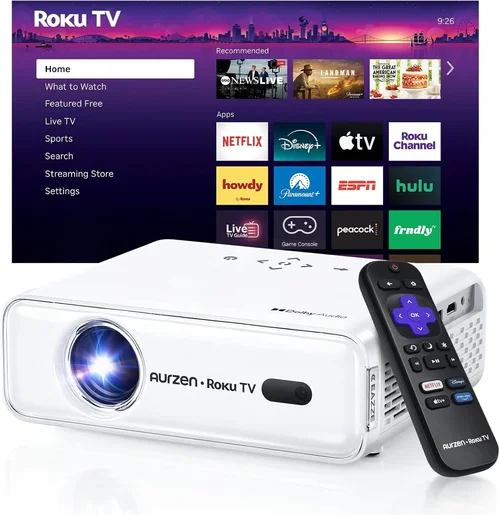
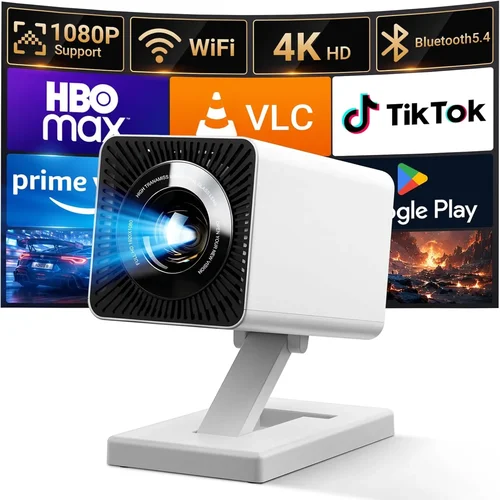
Choosing the right projector for PowerPoint presentations can feel like finding a needle in a haystack, especially when you’re trying to stay under $100. Yet the right device can turn a dull slide deck into a captivating visual experience, whether you’re in a conference room, a classroom, or a home office. This guide cuts through the noise, giving you the knowledge you need to make a confident purchase without breaking the bank.
In the next few sections you’ll discover which specifications truly matter for slide‑show work, how different projector types stack up against each other, and the common pitfalls that trip up even seasoned buyers. By the end, you’ll be equipped to pick a model that delivers crisp text, reliable connectivity, and the durability you need for repeated use—all while staying comfortably under $100.
The budget‑friendly projector market has exploded in the last three years. Mini‑projectors, also known as pico‑projectors, now pack 1080p support, Bluetooth, and built‑in speakers at a fraction of the price they did a decade ago. This surge means you have more options, but also more technical jargon to decode. Let’s demystify the landscape so you can focus on what matters most for PowerPoint.

What to Look for When Buying Buying Guide
1. Budget & Price Range
Sticking to a sub‑$100 ceiling forces you to prioritize certain features over others. While you won’t find cinema‑grade brightness at this price point, you can still secure a projector that delivers clear, readable text in typical office lighting. Set a firm maximum, but allow a small buffer (e.g., $95‑$105) to capture sales or bundle deals that often include a spare lamp or a portable screen.
2. Performance Specifications
Key specs to watch are:
- Resolution: Aim for at least 800×600 (SVGA) for legible text. Some models push 1280×720 (720p) which is a bonus.
- Brightness (lumens): For dim conference rooms, 200‑300 ANSI lumens is sufficient. Brighter rooms may require 400+ lumens, but such units usually exceed $100.
- Contrast Ratio: Higher contrast improves text sharpness. Look for 2000:1 or better.
- Throw Distance: Short‑throw models let you project a 100‑inch image from a few feet away—ideal for small meeting rooms.
3. Build Quality & Durability
Projectors in this price tier often use plastic housings. Choose models with reinforced corners and a sturdy lens cover. If you travel frequently, a ruggedized design with a protective case will extend the device’s lifespan.
4. Features & Functionality
While you don’t need 3‑D or laser light sources for PowerPoint, certain conveniences make life easier:
- Multiple Input Ports: HDMI is a must; USB‑C or VGA can be useful for legacy laptops.
- Wireless Options: Wi‑Fi or Bluetooth streaming lets you send slides directly from a phone or tablet.
- Built‑in Speakers: If you occasionally embed video, a 2‑3 W speaker is adequate.
- Keystone Correction: Automatic or manual keystone helps align the image on uneven surfaces.
5. Brand Reputation
Even in the low‑cost segment, certain manufacturers have earned trust for consistent firmware updates and responsive support. Brands like Vankyo, AAXA, and Epson (entry‑level models) often receive higher user satisfaction scores.
6. Warranty & Support
Look for at least a 12‑month limited warranty covering defects and lamp failures. Some sellers offer extended warranties for a modest fee—worth considering if you plan heavy use.
7. Size & Portability
Mini‑projectors can fit in a backpack, making them perfect for on‑the‑go presentations. However, smaller units sometimes sacrifice brightness. Balance portability with the lighting conditions of your primary venue.
8. User Reviews & Ratings
Real‑world feedback reveals quirks that specs sheets hide. Pay attention to comments about heat management, fan noise, and the reliability of wireless connections.
Different Types of Buying Guide
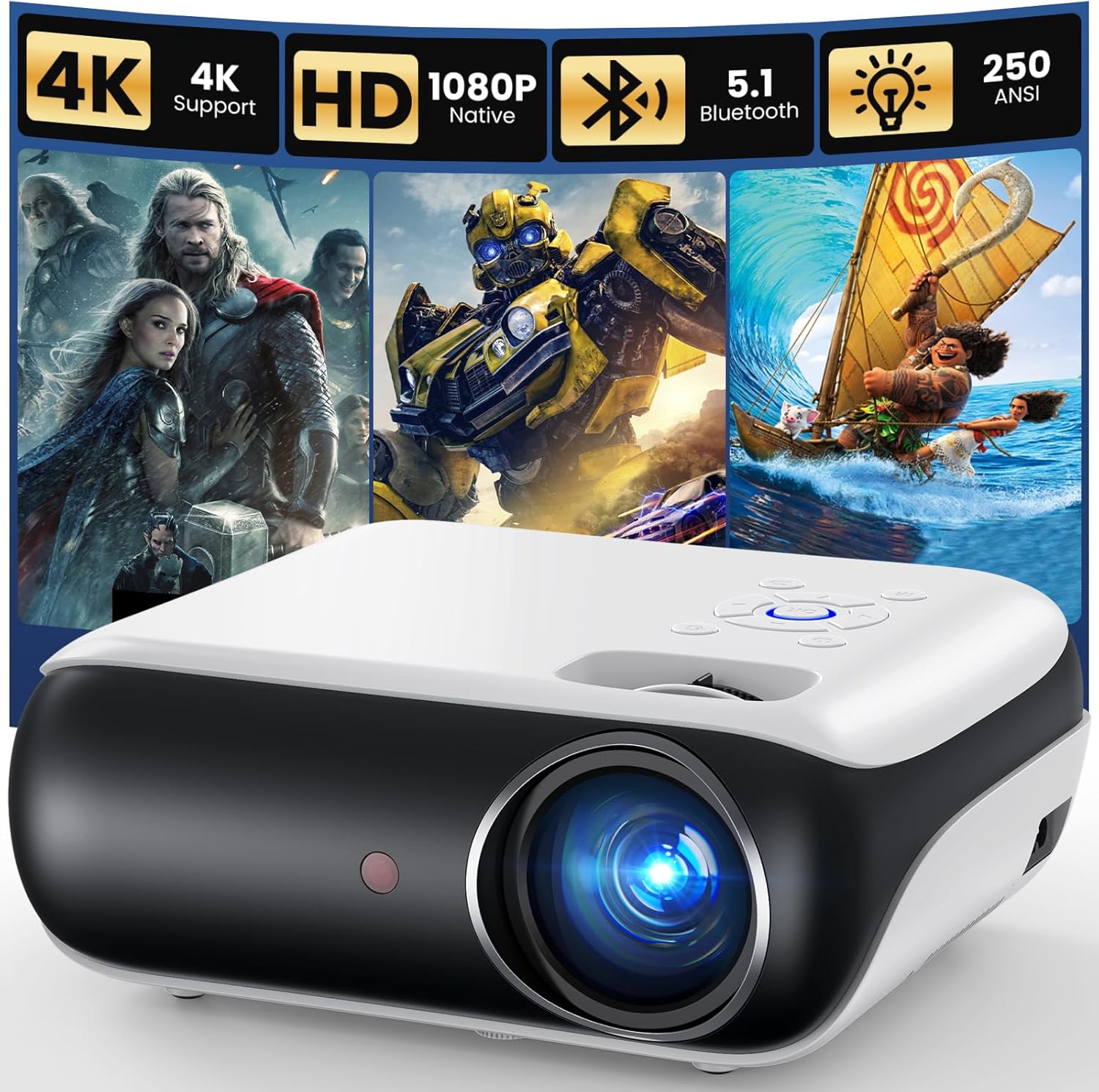
Common Buying Mistakes to Avoid
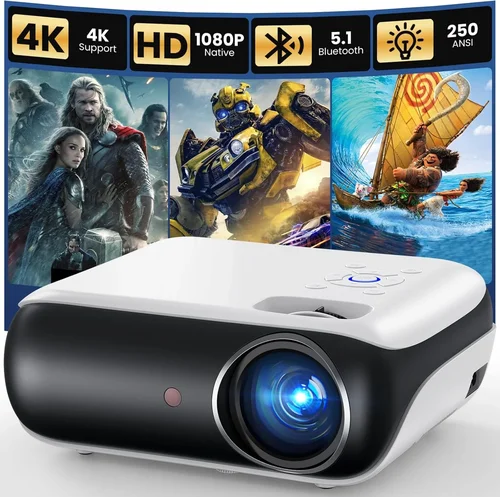
❌ Mistake: Ignoring Ambient Light Conditions
Why it’s bad: A projector that looks brilliant in a dark room can appear washed out in a lit conference room, making slides unreadable.
What to do instead: Measure the typical lighting of your presentation space. If natural light is unavoidable, prioritize a model with at least 300 lumens and a high contrast ratio.
❌ Mistake: Over‑focusing on Resolution Alone
Why it’s bad: High resolution means little if the projector is too dim or the image is distorted.
What to do instead: Balance resolution with brightness and contrast. For most PowerPoint work, 800×600 with 250+ lumens is a sweet spot.
❌ Mistake: Skipping the Warranty Details
Why it’s bad: Low‑cost units often have shorter lamp lives; a missing warranty can leave you paying for a replacement out of pocket.
What to do instead: Verify the warranty period, what it covers, and how to claim it before you buy.
❌ Mistake: Forgetting About Connectivity Options
Why it’s bad: You might end up with HDMI only, but your laptop only has USB‑C or VGA, forcing you to buy adapters.
What to do instead: List every device you plan to connect and ensure the projector offers compatible ports or reliable wireless casting.
❌ Mistake: Purchasing Without Testing
Why it’s bad: Color accuracy, fan noise, and keystone correction performance can vary widely between units of the same model.
What to do instead: Buy from retailers with a solid return policy, and test the projector with a sample PowerPoint file before finalizing.
Budget Guidelines: How Much Should You Spend?
- Entry-Level ($70‑$85): Expect basic SVGA resolution, 200‑250 lumens, and a single HDMI port. Ideal for occasional use in dim rooms.
- Mid-Range ($86‑$100): You’ll find 720p support, 300+ lumens, built‑in speakers, and added wireless options. This tier offers the best value for regular presenters.
- Premium ($101‑$130): Slightly above the $100 ceiling, but includes higher brightness (400+ lumens), better contrast, and longer lamp life. Consider if your budget can stretch a little.
- Luxury ($131+): Professional‑grade optics, laser light sources, and robust connectivity. Not necessary for standard PowerPoint work.
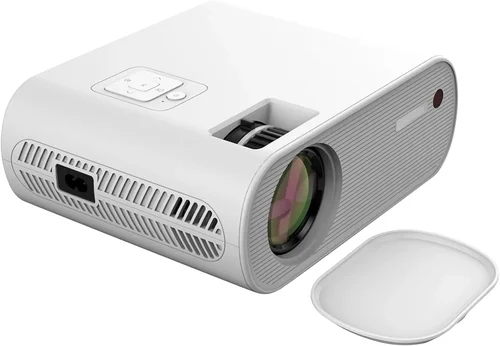
Expert Tips for Getting the Best Deal
- Timing: Black Friday, Cyber Monday, and back‑to‑school sales often feature sub‑$100 projectors.
- Where to Buy: Compare Amazon, Newegg, and direct manufacturer sites. Some brands offer exclusive bundles (e.g., extra lamp or a portable screen) that improve overall value.
- Spotting Deals: Look for “refurbished” or “open‑box” listings from reputable sellers; they usually come with full warranties at 20‑30% off.
- Warranty Considerations: Register the product within 30 days to activate extended support options.
- Return Policies: Choose retailers with at least a 30‑day return window. Test the projector in your typical environment before committing.
- Testing Before Buying: Bring a laptop with a PowerPoint file to the store. Project a few slides to check text clarity and color fidelity.
- Bundle Savings: Purchasing a portable screen together can sometimes reduce the total cost versus buying each separately.

Frequently Asked Questions
Q: Can a sub‑$100 projector display full‑HD (1080p) content?
A: Some models claim 1080p support, but they often downscale the signal to their native resolution (usually 720p or lower). For PowerPoint, native resolution matters more than input format, so focus on clear text rather than video playback.
Q: How long does the lamp last on budget projectors?
A: LED lamps in this price range typically last 20,000‑30,000 hours, far exceeding the lifespan of traditional bulbs. This reduces maintenance costs.
Q: Will Wi‑Fi connectivity add noticeable lag when casting slides?
A: Modern Wi‑Fi Direct or Miracast implementations introduce minimal latency (under 0.5 seconds), which is acceptable for static slides. For video, wired HDMI remains the most reliable.
Q: Is a portable screen necessary?
A: Not always. A smooth, white wall works if the room can be darkened. However, a dedicated screen improves brightness efficiency and reduces hotspotting.
Q: How loud are the fans on cheap projectors?
A: Fan noise varies from 30 dB (quiet) to 45 dB (noticeable). Look for user reviews that mention “quiet operation” if you present in a small meeting room.
Q: Can I use a projector with a smartphone?
A: Yes, if the projector supports HDMI‑MHL, USB‑C, or wireless casting (AirPlay, Miracast). Some models include a dedicated app for easy slide sharing.
Q: What is the ideal throw distance for a 100‑inch image?
A: Most budget projectors need 8‑12 feet. Short‑throw models can achieve the same size from 3‑4 feet, which is useful in cramped spaces.
Our Final Recommendations
- Best for Budget‑Conscious Buyers: Vankyo Leisure 3 – $79. Offers 800×600 resolution, 2400 lumens, and HDMI/VGA inputs. Ideal for occasional office use.
- Best Overall Value: AAXA P300 Pico – $99. Provides 1280×720 native resolution, 300 lumens, built‑in battery, and Wi‑Fi casting.
- Best Premium Option (Just Above $100): Epson EF‑100 – $129. Laser light source, 2000 lumens, and excellent color accuracy—great if you can stretch the budget.
- Best for Beginners: DR. J Professional HI‑04 – $85. Simple plug‑and‑play, HDMI, and quiet fan.
- Best for Advanced Users: ViewSonic M1 Mini Plus – $119 (often on sale under $100). Features interchangeable lenses, JBL speakers, and Android OS for direct app access.
Conclusion: Making the Right Choice
Finding the best projector for PowerPoint under $100 is entirely doable once you understand the trade‑offs between brightness, resolution, and connectivity. Prioritize the factors that align with your presentation environment—whether that’s a dim boardroom or a bright classroom. Use the budget breakdown to set realistic expectations, avoid the common mistakes listed, and leverage the expert tips to secure the best possible deal.
Remember, the perfect projector is the one that consistently delivers clear, readable slides without forcing you to compromise on comfort or reliability. Take the time to compare models, read user feedback, and test a unit whenever possible. With the knowledge from this guide, you’re now ready to make an informed purchase that will serve your PowerPoint needs for years to come.