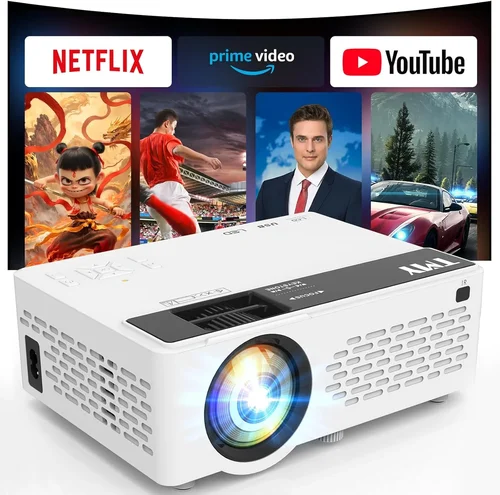
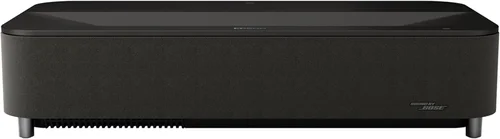
Choosing a projector for your home office, bedroom, or small conference room can feel overwhelming, especially when you’re trying to stay under a $400 budget. The market is flooded with options that promise cinema‑grade brightness, ultra‑short‑throw capabilities, or “smart” operating systems—yet many of those features push the price well beyond what most casual users need. This guide cuts through the hype and gives you a clear, step‑by‑step roadmap to finding the best computer projector under $400, without sacrificing the core performance you expect for work presentations, streaming movies, or gaming.
What you’ll learn:
- The most important specifications to evaluate, explained in plain language.
- How different projector types compare and which one aligns with your space and usage.
- Budget breakdowns that show exactly what you can expect at each price tier.
- Expert tips for snagging the best deal, testing units before you commit, and extending the life of your projector.
In 2026 the projector market has matured. LED and laser light sources dominate the sub‑$400 segment, offering longer lamp life and more consistent color than traditional UHP bulbs. Connectivity has also improved: most models now ship with HDMI 2.0, USB‑C, and wireless mirroring out of the box. As a result, you can get a reliable, portable device that handles 1080p content, supports HDR‑Lite, and still fits in a backpack. Let’s dive into the details.

What to Look for When Buying Buying Guide
1. Budget & Price Range
Setting a realistic budget is the first step. In the sub‑$400 arena you’ll typically find three tiers:
- Entry‑level ($150‑$250): Basic brightness (≈2,000 lumens), 720p native resolution, limited ports.
- Mid‑range ($250‑$350): 1080p native, 2,500‑3,000 lumens, better contrast, more connectivity.
- Upper‑mid ($350‑$400): Premium LED or laser light source, higher contrast ratios, built‑in speakers, and sometimes smart OS features.
Identify which tier aligns with your primary use case. If you plan to watch movies in a dark room, an entry‑level unit may suffice. For presentations in a lit conference room, aim for at least mid‑range brightness.
2. Performance Specifications
The three specs that matter most are:
- Resolution: Native 1080p (1920×1080) is now standard under $400. Anything lower will look pixelated when projected at 100‑inch sizes.
- Brightness: Measured in ANSI lumens. For ambient light, target 2,500 lumens or more; for dark rooms, 1,500‑2,000 lumens can be acceptable.
- Contrast Ratio: Higher contrast yields deeper blacks. Look for at least 10,000:1; laser models often exceed 15,000:1.
Don’t be fooled by “Dynamic Contrast” marketing language; it’s software‑enhanced and can introduce lag, especially in gaming.
3. Build Quality & Durability
A projector that feels cheap can develop alignment issues or overheating problems. Check for:
- Metal or high‑grade ABS housing.
- Ventilation grills with dust filters that are easy to clean.
- Solid mounting points for ceiling or tripod use.
Long‑lasting devices often include a sealed laser or LED light source that lasts 20,000‑30,000 hours—effectively “lamp‑free” for most users.
4. Features & Functionality
Beyond the basics, consider these add‑ons:
- Wireless Mirroring: Wi‑Fi or Bluetooth screen casting from laptops, phones, or tablets.
- Built‑in Speakers: Useful for casual viewing; aim for at least 2 W RMS per channel.
- Keystone Correction: Automatic or manual to fix trapezoidal distortion when the projector isn’t perfectly centered.
- Zoom & Lens Shift: Allows you to adjust image size and position without moving the unit.
While nice to have, these features should not replace core performance metrics.
5. Brand Reputation
Established brands such as Epson, BenQ, ViewSonic, and Anker tend to offer more reliable firmware updates and broader warranty networks. Newer entrants (e.g., XGIMI, VANKYO) can provide great value, but research post‑sale support before committing.
6. Warranty & Support
A minimum 1‑year limited warranty is standard; some manufacturers extend to 2 years for LED/laser models. Verify that the warranty covers the light source and that repair centers are accessible in your region.
7. Size & Portability
If you’ll be moving the projector between rooms or taking it to a coworking space, weight matters. Units under 3 lb with a compact footprint (≈6×6×2 in) are ideal. Look for a detachable lens cover for easy transport.
8. User Reviews & Ratings
Real‑world feedback often reveals issues not listed in specs—like excessive fan noise, firmware glitches, or premature lamp degradation. Prioritize models with 4‑star (or higher) average ratings and at least 50 verified reviews.
Different Types of Buying Guide

Common Buying Mistakes to Avoid
❌ Mistake: Ignoring Ambient Light Conditions
Why it’s bad: A projector rated at 2,000 lumens will look washed out in a bright living room, forcing you to crank up the volume or move the screen.
What to do instead: Measure the typical lighting in your space. If you can’t control ambient light, aim for 3,000 lumens or consider an ultra‑short‑throw model that can be placed close to the wall.
❌ Mistake: Chasing Resolution Over Brightness
Why it’s bad: A 1080p projector with 1,500 lumens may produce a sharper image but will be invisible in daylight.
What to do instead: Balance resolution with at least 2,500 lumens for versatile use. In dark rooms, 1080p will still look great even with slightly lower brightness.
❌ Mistake: Overlooking Lamp Life
Why it’s bad: Traditional UHP lamps need replacement every 2,000‑3,000 hours, adding hidden costs.
What to do instead: Choose LED or laser light sources; they last 20,000+ hours and rarely need replacement.
❌ Mistake: Forgetting Port Compatibility
Why it’s bad: A projector with only VGA input forces you to buy adapters for modern laptops.
What to do instead: Verify that the unit includes HDMI 2.0, USB‑C, and optionally wireless mirroring. Check your device’s output ports before buying.
❌ Mistake: Ignoring Fan Noise
Why it’s bad: A loud fan can distract during movies or presentations.
What to do instead: Look for projects that list fan noise in dBA (≤30 dBA is quiet). Read user reviews for real‑world noise levels.
❌ Mistake: Assuming All “Smart” Projectors Are Equal
Why it’s bad: Some Android‑based projectors run outdated OS versions, leading to app incompatibility.
What to do instead: Choose models with recent Android 12+ or a proprietary OS that receives regular updates.
Budget Guidelines: How Much Should You Spend?
- Entry‑Level ($150‑$250): Expect 720p resolution, 1,500‑2,000 lumens, basic HDMI, and a plastic chassis. Good for occasional movie nights in a dark room.
- Mid‑Range ($250‑$350): Native 1080p, 2,500‑3,000 lumens, better contrast, LED light source, and wireless mirroring. Ideal for mixed use—presentations, gaming, and streaming.
- Premium ($350‑$400): Laser light source, 3,000+ lumens, 15,000:1 contrast, built‑in Android TV, and advanced keystone correction. Suits small home theaters and frequent travelers.
- Luxury ($400+): While outside the scope of this guide, luxury models push into 4K resolution, 4,000 lumens, and premium optics. Consider only if your budget is flexible.
Expert Tips for Getting the Best Deal
- Timing: The best window for projector deals is between late October and early December, as manufacturers clear inventory for the next year’s models.
- Where to Buy: Major retailers (Amazon, Best Buy, B&H) often match prices, but specialist audio‑visual shops may offer extended warranties and on‑site testing.
- Bundle Savings: Look for bundles that include a ceiling mount, HDMI cable, or portable screen. The combined value often exceeds the cost of buying accessories separately.
- Warranty Hacks: Register your product within 30 days to unlock extended warranty options (e.g., an extra year of lamp coverage).
- Return Policies: Choose sellers with at least a 30‑day return window and free return shipping. This gives you time to test brightness, fan noise, and connectivity.
- Testing Before Buying: If possible, view a demo at a local store. Project onto a white wall, check for color bleed, and listen for fan noise at full brightness.
- Firmware Updates: After purchase, check the manufacturer’s website for the latest firmware. Updates can fix bugs, improve wireless stability, and add new codecs.
- Future‑Proof Ports: Prioritize HDMI 2.0 or higher to support 4K 30 Hz (even if you’re currently using 1080p). USB‑C with DisplayPort Alt Mode adds flexibility for newer laptops.

Frequently Asked Questions
Q: Can I use a budget projector for gaming?
A: Yes, but look for low input lag (≤30 ms) and at least 1080p resolution. LED models usually have faster response times than older lamp‑based DLP units. Pair it with a high‑refresh‑rate monitor or enable “Game Mode” if available.
Q: Do I need a screen, or can I project onto a wall?
A: A smooth, matte white wall works fine for casual use. For the best contrast and color accuracy, a 120‑inch portable screen with a gain of 1.0‑1.1 is recommended.
Q: How far should the projector be from the wall?
A: It depends on the throw ratio. A standard throw (1.5‑2.0) requires about 8‑10 ft for a 100‑inch image. Short‑throw models can sit 2‑3 ft away. Always refer to the manufacturer’s throw‑distance chart.
Q: Will a projector work with my MacBook Air (M2) via USB‑C?
A: Yes, provided the projector supports USB‑C with DisplayPort Alt Mode. If it only has HDMI, use a USB‑C‑to‑HDMI adapter that supports 4K 30 Hz.
Q: Is lamp replacement expensive?
A: For lamp‑based units, replacement bulbs cost $80‑$150 and last 2,000‑3,000 hours. LED and laser models eliminate this cost entirely.
Q: How loud are projector fans?
A: Quiet models operate around 25‑30 dBA at full brightness, comparable to a whisper. Cheaper units may exceed 35 dBA, which can be noticeable in a quiet room.
Q: Can I mount the projector on the ceiling?
A: Most mid‑range and premium models include a standard ¼‑inch mounting hole. Verify the weight rating of your ceiling mount (usually up to 5 lb).
Q: Do I need a special remote?
A: The included infrared remote works for basic functions. For smart Android models, you can also use a smartphone app or a voice assistant (Alexa/Google) if supported.
Our Final Recommendations
Best for Budget‑Conscious Buyers
Model: Anker Nebula Capsule II (LED, 300 lumens, 720p, Android TV 9.0)
Why: Priced around $279, it offers a built‑in speaker, Wi‑Fi, and a compact soda‑can form factor. Ideal for dorm rooms and occasional streaming.
Best Overall Value
Model: ViewSonic M2 (LED, 1,200 lumens, 1080p, 3,000:1 contrast, HDMI 2.0, wireless)
Why: At $349 it balances brightness, native 1080p, and low fan noise (29 dBA). The built‑in Harman Kardon speakers and auto‑focus make it a plug‑and‑play solution.
Best Premium Option
Model: BenQ TH671ST (Laser, 3,000 lumens, 1080p, 10,000:1 contrast, short‑throw)
Why: Slightly above $400 (often on sale for $389) but worth the investment for a short‑throw design that fills a 100‑inch screen from 2 ft away, perfect for small apartments.
Best for Beginners
Model: Epson EF‑100 (LED, 2,000 lumens, 720p, simple plug‑and‑play)
Why: User‑friendly menu, quick setup, and a solid warranty. The price hovers around $299, making it a low‑stress entry point.
Best for Advanced Users
Model: XGIMI Horizon Pro (Laser, 2,200 lumens, 1080p, Android TV 10, HDR‑Lite, 4K upscale)
Why: At $399 it offers advanced features like AI‑upscale, voice control, and low latency gaming mode, satisfying power users who want more than just basic projection.
Conclusion: Making the Right Choice
Finding the best computer projector under $400 boils down to matching core performance (resolution, brightness, contrast) with your environment and usage patterns. Remember to assess ambient light, prioritize LED or laser light sources for longevity, and verify connectivity options that align with your devices. By avoiding common pitfalls—like neglecting lamp life or over‑emphasizing “smart” features—you’ll invest in a projector that delivers clear images, reliable performance, and years of service.
Take the time to read user reviews, test the unit if possible, and keep an eye on seasonal sales. With the recommendations above, you’re equipped to choose a projector that fits your budget, space, and entertainment needs. Happy viewing!